
In short:
- WordPress has no bulk tool: core gives every image an alt text field, but no way to list the empty ones or fill them together.
- Free file-name method: a plugin can write alt text from file names in one bulk run. In our test, five of seven empty images got usable text.
- Camera file names: names like IMG_4821.jpg say nothing, so only AI that looks at the picture can describe them.
- Keep what you wrote: run on "Only images missing alt text" so hand-written descriptions are skipped.
The fastest way to find and fill missing alt text
The fastest way is a tool that counts the empty fields and fills them in one run. By hand, you open images one at a time to find out which ones have no alt text, and on an old library that can mean hundreds of clicks.
We built ByteKeel PixTag at ByteKeel to remove that guesswork. It adds an Alt Text column to the Media Library list view, with a green tick or a red cross per image.
Its Bulk Processor shows how many images need alt text, then fills them from file names and post context on your own server. There is no AI, no API key and no per-run or daily limit.
You can try it on a private WordPress in the ByteKeel playground. If you would rather do this without a plugin, the native steps come after our test.
How we tested a bulk run on eight images
We built a test library of eight product images. Seven had no alt text and one had a description written by hand. In ByteKeel PixTag › Bulk Processor we kept Only images missing alt text selected and started a run with the file-name method.
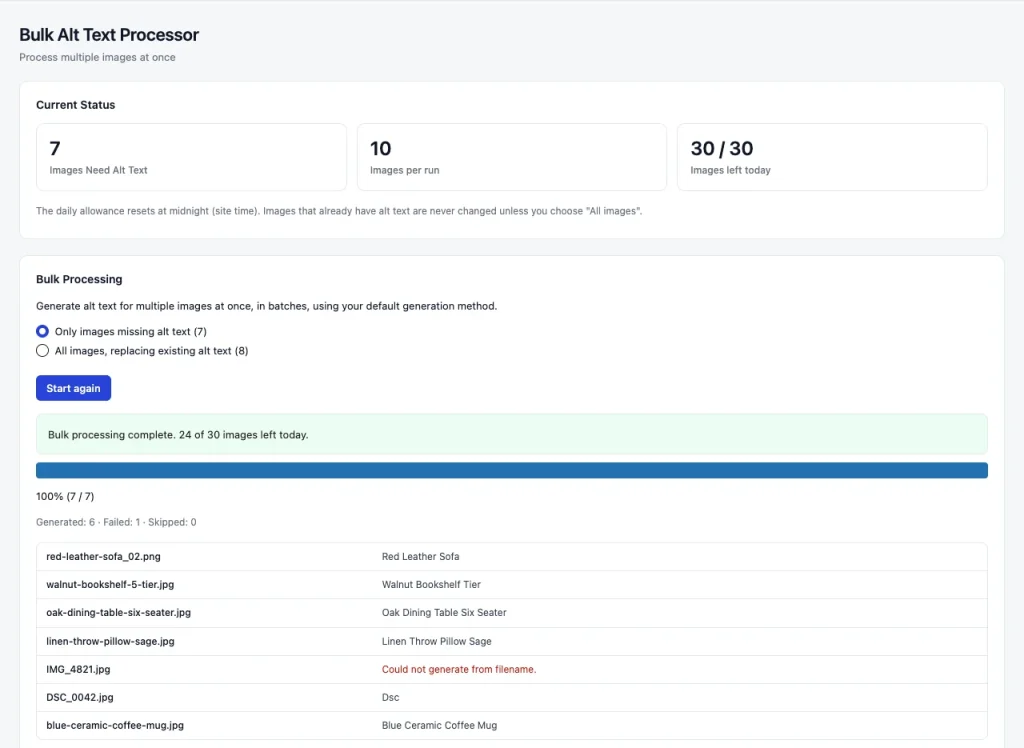
| File name | Alt text written | Verdict |
|---|---|---|
| oak-dining-table-six-seater.jpg | Oak Dining Table Six Seater | Usable |
| blue-ceramic-coffee-mug.jpg | Blue Ceramic Coffee Mug | Usable |
| linen-throw-pillow-sage.jpg | Linen Throw Pillow Sage | Usable, a little stiff |
| red-leather-sofa_02.png | Red Leather Sofa | Usable: the "02" was removed |
| walnut-bookshelf-5-tier.jpg | Walnut Bookshelf Tier | Lost the "5", which mattered |
| DSC_0042.jpg | Dsc | Not useful |
| IMG_4821.jpg | Nothing written | Correctly refused: "Could not generate from filename" |
| showroom-photo.jpg (hand-written alt) | Unchanged | Protected: it already had alt text |
Five of seven results were usable, one was not, and one was rightly skipped. File-name alt text is only as good as your file names. Numbers are stripped as clutter, which is usually right ("_02") and sometimes wrong ("5-tier").
This run used version 1.0.10. Since 1.0.11, camera and phone names such as DSC01234 or IMG_1234 no longer become alt text: the plugin uses a meaningful attachment title instead, or marks the image "Needs review". So "Dsc" should not appear on a current install.
How do I bulk add alt text without a plugin?
Without a plugin you cannot truly bulk add alt text in WordPress, but you can work through the backlog in a sensible order. Start with the images that matter most:
- Open the Media Library: go to Media › Library and sort by date, newest first, since recent uploads are on live pages.
- Open each image: click it to open Attachment details and look at the Alternative Text field.
- Write a short description: say what the image shows and why it is on the page. Skip "image of", because screen readers already announce an image.
- Leave decorative images empty: dividers and background shapes should have empty alt text on purpose.
- Check the page itself: the Image block and page builders such as Divi can keep their own copy of the alt text, so view the page source to confirm.
This works for a few dozen images. It breaks down on a library of hundreds, because core gives you no count of what is left and no filter for empty fields.
File names or AI: where should the words come from?
Automatic alt text comes from one of two places: the file name and post context, or an AI model that looks at the picture. Which one fits depends on how your files are named.
| Approach | Uses | Good when | Edition |
|---|---|---|---|
| File name and context | The file name, plus optional details such as the post title, category or site name | Files are named after what they show | ByteKeel PixTag (free) and Pro |
| AI image understanding | An AI model looks at the picture, through ByteKeel AI (credits included each month) or your own OpenAI or Anthropic key | Files have camera names, or the picture shows more than the name says | ByteKeel PixTag Pro |
Context helps where the name says nothing. With the hybrid method, an image called IMG_4382.jpg uploaded to a post titled "Sunrise over Lake Bled" gets that title as its alt text. Images not attached to a post fall back to the cleaned-up file name.
What ByteKeel PixTag Pro adds for bulk work
ByteKeel PixTag Pro adds AI that describes the picture, plus the controls you want before touching a large library. It is a separate plugin and does not need the free one installed.

- AI image understanding: the model looks at the picture, so IMG_4821.jpg can still get a real description. ByteKeel AI uses your monthly credits; your own key is billed by your provider.
- Filters and preview: narrow by upload date, post type or specific posts, then preview five results without saving.
- Pause and resume: batches of up to 100 images, with pause, resume and cancel on a long run.
- Automatic on upload: new images get alt text on upload or post save, so they never arrive empty.
- More fields and tools: caption and description as well as alt text and title, an Image Manager with CSV export and import, and an Unused Media finder.
ByteKeel AI processes up to 30 images per site per UTC day while credits remain. Without an active licence, Pro runs its built-in free mode: local alt text, up to 10 images per run and 30 per day.
Native WordPress vs ByteKeel PixTag: which do you need?
For a small library, native WordPress is enough. Once the backlog runs into hundreds of images, a bulk tool saves hours.
| Criterion | Native WordPress | ByteKeel PixTag (free) | ByteKeel PixTag Pro |
|---|---|---|---|
| Find images missing alt text | Open each image | Alt Text column and a count | Alt Text column, count and filters |
| Fill many at once | No | Bulk Processor, no per-run or daily limit | Bulk with preview, pause and resume |
| Camera file names | You write each one | Left empty or marked for review | AI describes the picture |
| New uploads | Manual | Manual (Generate button or bulk run) | Automatic on upload or post save |
| Hand-written alt text | Yours to keep | Skipped by the default scope | Skipped by default |
| Cost | Free | Free, no licence key | From $29 a year |
When you do not need ByteKeel PixTag Pro: your files are named after what they show, you add images a few at a time, or you do not want images sent to an outside service. The free plugin, or careful manual work, covers that.
How to stop new images arriving without alt text
Four habits keep the backlog from coming back:
- Name files before upload: use "oak-dining-table-six-seater.jpg", not "final-v3.jpg".
- Run a small batch first: read the results before you process the rest of the library.
- Fix weak results by hand: after a run, sort by the Alt Text column and rewrite the few that read badly.
- Protect good descriptions: keep "Only images missing alt text" selected unless you mean to replace text. See how to protect hand-written alt text.
To start, get the free ByteKeel PixTag and read the Bulk Processor and Media Library tools guide. For AI descriptions and automatic alt text on upload, see ByteKeel PixTag Pro.
Frequently asked questions
Can WordPress add alt text automatically?
Not on its own. WordPress gives every image an Alternative Text field but leaves it empty. A plugin such as ByteKeel PixTag Pro can fill it on upload.
Will a bulk run overwrite alt text I already wrote?
Not with "Only images missing alt text" selected, which is the default. In our test the hand-written image was left unchanged. The "All images, replacing existing alt text" scope does replace it, and the free plugin asks you to confirm first.
What happens to images named IMG_1234.jpg?
A file-name method has nothing to work with. ByteKeel PixTag 1.0.11 uses a meaningful attachment title if there is one, or marks the image "Needs review". AI in ByteKeel PixTag Pro can describe the picture instead.
Is there a limit on how many images I can process?
The free ByteKeel PixTag has no per-run or daily limit since version 1.0.11. In Pro, local methods have no limit, and ByteKeel AI processes up to 30 images per site per UTC day while credits remain.
More about ByteKeel PixTag
-

Protect hand-written alt text
Keep alt text your team wrote by hand. See which bulk and AI actions skip existing descriptions, which replace them on purpose, and how to test before a large run.
Leave a Reply