Keep or delete the original
wp-content/uploads/2026/11/
- dusk-lake.jpg3.7 MB
- dusk-lake.webp167.7 KB
On disk3.8 MB
The WebP is used everywhere; the original stays on disk unless you choose to delete it.
Black Friday 50% off your first year on all premium plugins and the Suite.
See the deals
WebP Auto ConvertWebP converter plugin for WordPress · Free
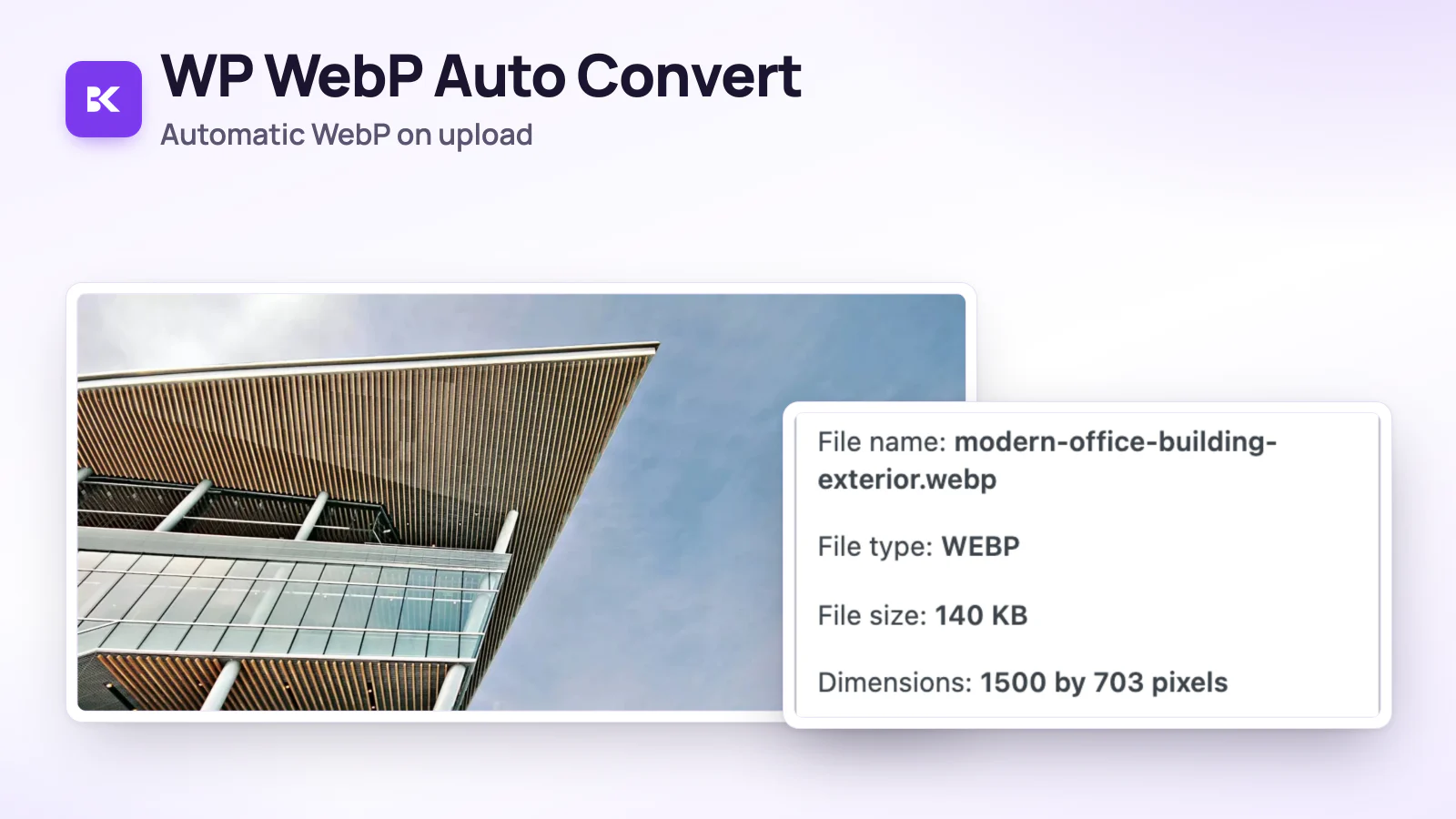
Every upload becomes WebP, and oversized photos are scaled down, before WordPress makes its thumbnails.
 167.7 KBWEBP
−96%3.7 MB → 167.7 KB
Illustration with a real example: a 12-megapixel test photo converted by the plugin with its default settings.
Drag the handle. Left: the photo as it was uploaded. Right: the file the plugin stored.


Example image: a 4032 × 3024 test photo made for this page, uploaded through the plugin’s own conversion code with its default settings (maximum 2560 px, quality 82, GD image editor). The display copies above are scaled down for this page. Your own images will give different numbers.
The plugin’s quality setting runs from 1 to 100, with 82 as the default. Move it and see what the example image would weigh.

Lower means a smaller file and more compression artefacts. The plugin suggests 80–85. The same quality is used for every thumbnail.
Sizes measured for every quality from 1 to 100 with the plugin’s own code on the example image (scaled to 2560 × 1920). The zoomed detail is shown at the nearest of seven saved qualities.
All inside the normal WordPress upload, before the image reaches your Media Library.
Media Library, the editor, or an import that uses WordPress sideloading.
Server cannot make WebP? The upload is kept exactly as it was.
Phone photos are turned the right way up, then scaled down to the maximum size.
At your quality, under a name that never overwrites an existing file.
WordPress builds its thumbnails from the WebP, at the same quality.
Everything lives on one screen under Settings › WebP Auto Convert. Switch it on and the defaults just work.
wp-content/uploads/2026/11/
On disk3.8 MB
The WebP is used everywhere; the original stays on disk unless you choose to delete it.
Proportions are kept and images are never enlarged. 0 means no limit.
WebP availableGD or Imagick can write WebP: uploads are converted.
UnavailableUploads stay in their original format. The settings screen explains why and counts them.
Example: the dashboard after one upload
WebP Auto Convert is a free WordPress plugin that converts new JPEG and PNG uploads to WebP before WordPress makes the thumbnails, so every size is WebP; images already in the library are not converted.
Something not covered here? Write to us.
No. It converts new uploads as they arrive. Images already in your Media Library stay as they are.
By default it is kept in the uploads folder next to the WebP (not listed in the Media Library) and removed with the attachment. You can choose to delete it after a successful conversion; a deleted original cannot be restored.
All current versions of Chrome, Safari, Firefox and Edge do. Because the stored file is WebP, browsers that cannot read WebP at all would not show the image.
WordPress’s image editor with WebP support — GD or Imagick, which most hosts provide. Without it, uploads are simply kept in their original format.
Yes. Free — no licence key or account is required to use the plugin, and there are no limits. It is not on WordPress.org; updates come from bytekeel.com and install from your Plugins screen.
WebP Auto Convert · free forever
Enter your email: we create a free ByteKeel account with the download. Running it needs no key or account.
Your email address
Only used for your licence and account. No newsletter unless you ask for it.
Or try WebP Auto Convert in the playground firstStep-by-step guides, tested on real sites, with the versions we used.

Your phone photos upload as multi-megabyte JPEGs, and WordPress builds every thumbnail from them. Here is how to convert each new upload to WebP automatically, with or without a plugin, and what…