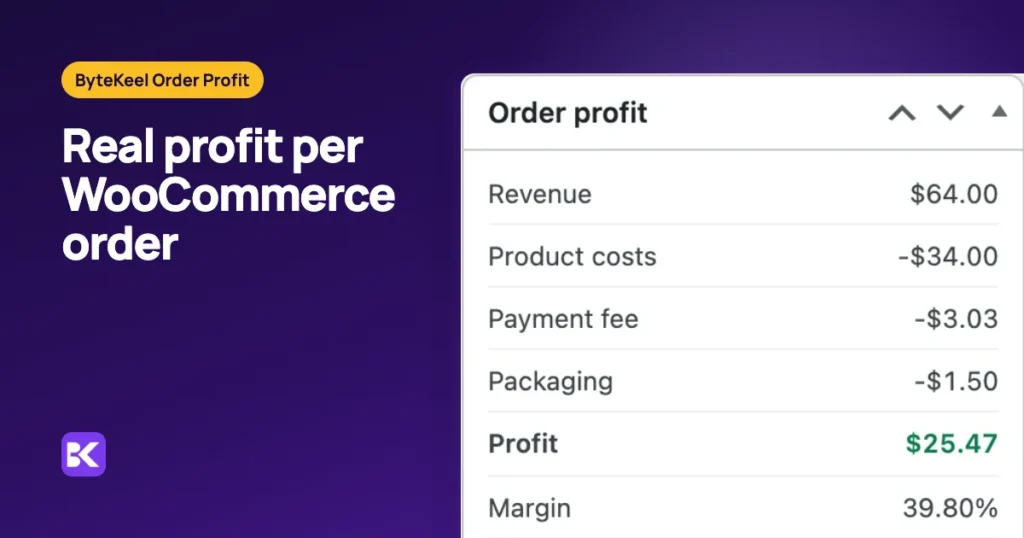
In short:
- The formula: profit is revenue after refunds, tax and shipping charged, minus product cost, payment fees and packaging.
- Our worked order: a $98 payment made $56.36, and $37.36 after one item was returned and restocked.
- The refund rule: a refunded item's cost comes off only if it goes back into stock. A damaged return still costs you.
- Not net profit: advertising, staff and overheads sit outside an order, so this is contribution profit per order.
The fastest way to see profit on every order
Working profit out by hand means exporting orders and costs to a spreadsheet, and the sheet goes stale as soon as a refund lands. WooCommerce's built-in Cost of Goods field stores costs, but it does not subtract them for you.
We built ByteKeel Order Profit at ByteKeel to do that subtraction. It is free, adds a cost field to every product and variation, and saves a profit and margin on each order in a counted status. The figure appears in the orders list, in an Order profit box on the order, and on a dashboard.
You can try it on a private WordPress in the ByteKeel playground. If you would rather work it out by hand, here is the formula and a full example.
How do you calculate profit on a WooCommerce order?
Take the order total and remove refunds, tax and the shipping charged to get revenue. Then subtract product cost, the payment fee and packaging. Margin is profit divided by revenue.
Revenue = order total − refunds − tax − shipping charged
Costs   = (unit cost × quantity kept) + payment fee + packaging
Profit  = Revenue − Costs
Margin  = Profit ÷ Revenue
Each part involves a decision you make once for your store:
- Tax: it is collected for the government, so leave it out of revenue.
- Shipping: if you leave the charge out of revenue, leave the carrier cost out too, and the two cancel out. If shipping makes or loses money, count both.
- Payment fees: usually a percentage of the amount charged plus a fixed amount per transaction. Use your own processor's rates.
- Refunds: they reduce revenue. A refunded item you restock cost you nothing; one you never get back still cost you.
A worked example with a partial refund
One order: an organic cotton hoodie at $64 and a canvas tote at $28, plus $6 shipping and no tax, for a total of $98.
| Item | Unit cost | Qty | Line cost | Line revenue |
|---|---|---|---|---|
| Organic cotton hoodie | $22.00 | 1 | $22.00 | $64.00 |
| Canvas tote | $9.00 | 1 | $9.00 | $28.00 |
The settings: payment fee 2.9% + $0.30, packaging $1.50 per order, tax excluded, shipping not counted as revenue. Then the customer returns the $28 tote. The table shows the result if it is restocked, and if it never comes back in sellable condition.
| Line | Before the refund | Tote refunded and restocked | Tote refunded, not restocked |
|---|---|---|---|
| Revenue | $92.00 | $64.00 | $64.00 |
| Product costs | −$31.00 | −$22.00 | −$31.00 |
| Payment fee | −$3.14 | −$3.14 | −$3.14 |
| Packaging | −$1.50 | −$1.50 | −$1.50 |
| Profit | $56.36 | $37.36 | $28.36 |
| Margin | 61.3% | 58.4% | 44.3% |
Revenue starts at $98 minus the $6 shipping. The fee is 2.9% of $98 plus $0.30, and it stays after the refund because most processors keep the fee on a refunded payment.
The same order on a test store
We created this exact order on a WooCommerce 10.7 test store with HPOS on, including a $6 flat-rate shipping line. Then we refunded the tote through WooCommerce's refund screen, and WooCommerce raised its stock from 9 to 10.
ByteKeel Order Profit recalculated the order to $37.36, which matches the restocked column to the cent.
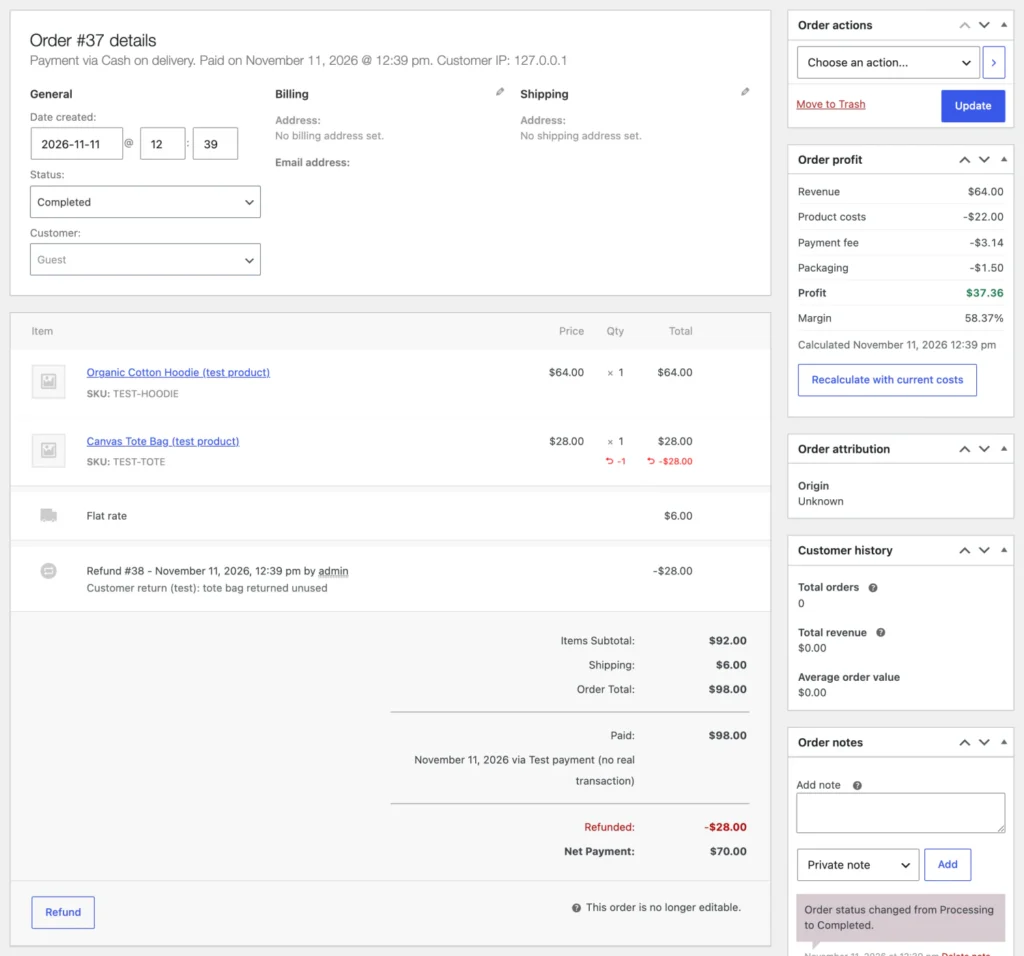
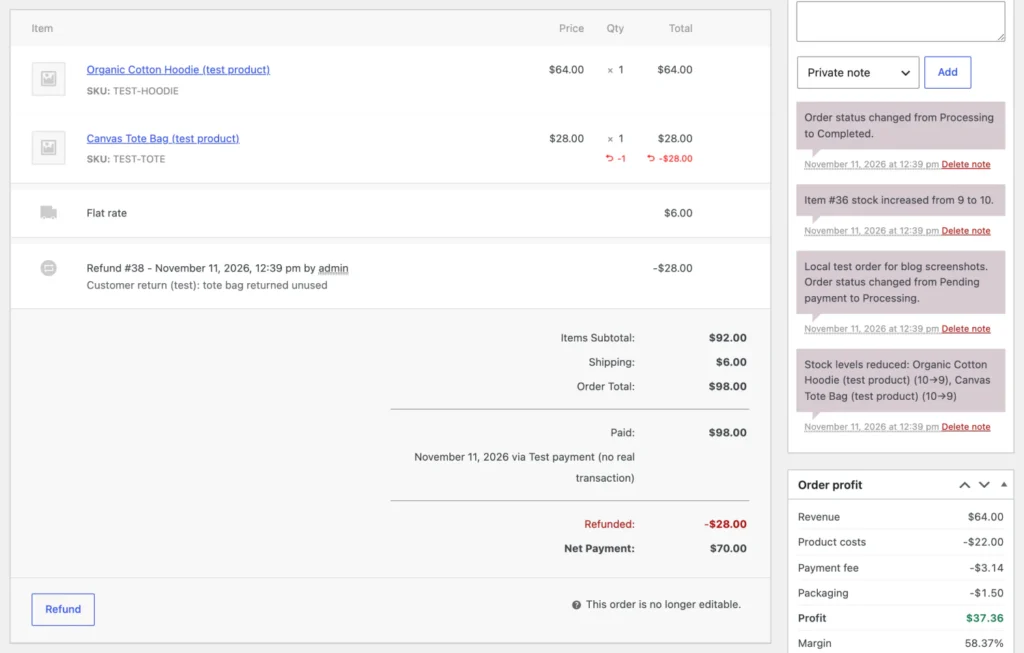
Had the tote been refunded without restocking, the plugin would keep its $9 cost and show $28.36. It removes a refunded item's cost only when WooCommerce returns the item to stock.
How to calculate order profit without a plugin
You can get the same numbers from WooCommerce's own features and a spreadsheet. Work in this order:
- Turn on Cost of Goods: go to WooCommerce › Settings › Advanced › Features, tick Cost of Goods Sold and save.
- Enter each product cost: edit a product and fill the Cost of Goods field on the General tab. Variations can override the parent cost.
- Export your orders: use Analytics › Orders › Download, because the Orders screen has no CSV export.
- Remove tax and shipping: Analytics › Revenue has Taxes and Shipping columns, and its Net sales figure already excludes both.
- Subtract costs per order: unit cost × quantity, then your processor's fee and your packaging.
- Adjust for refunds: remove a returned item's cost only if it went back into stock.
This has two limits. Built-in costs are saved only on orders placed after you enter them, and WooCommerce Analytics has no profit report, so the sheet becomes a monthly chore.
Spreadsheet vs ByteKeel Order Profit: which do you need?
A spreadsheet is exact and free if you check profit now and then. ByteKeel Order Profit saves the figure on every order as it happens, including refunds.
| Criterion | WooCommerce and a spreadsheet | ByteKeel Order Profit |
|---|---|---|
| Product costs | Built-in Cost of Goods field, per variation | Own cost field per product and variation, with Quick Edit and Bulk Edit |
| Profit per order | Worked out by hand | Saved on each counted order, shown in the orders list and order screen |
| Refunds | Adjusted by hand | Deducted automatically; cost removed only when restocked |
| Older orders | No cost before you switched it on | Recalculate all orders from the dashboard, in batches |
| Reports | No profit report in Analytics | Today, 7 and 30 days, any date range, CSV export |
| Cost | Free | Free, no licence key |
On our test store with 5,000 orders, a 30-day report took about 0.13 seconds to build and a full year about 1.5 seconds on the first load.
When you do not need ByteKeel Order Profit: you sell a handful of orders a month, or your accountant only needs cost totals, which WooCommerce's built-in field already gives. A monthly spreadsheet is fine there.
The plugin does not read WooCommerce's built-in cost field yet, so pick one place to type costs. Our comparison of WooCommerce Cost of Goods vs a profit plugin covers running both.
How to keep order profit accurate
Four habits keep the numbers honest:
- Fill in every cost: an item without a cost counts as zero and is flagged, so fix flagged orders before trusting a total.
- Recalculate after cost changes: orders keep the unit costs they were calculated with until you recalculate them.
- Check fee settings: payment fees are estimates from your settings, not each transaction's actual fee, so compare them with a processor statement.
- Restock through the refund: stock you add back by hand, outside the refund, is not detected.
To see this on your own orders, get ByteKeel Order Profit free and start with adding product costs and reading your first order profit.
Frequently asked questions
Is order revenue the same as profit?
No. Revenue is what the order earned under your tax and shipping rules. Profit subtracts product cost, payment fees, packaging and any other costs you track.
Should tax and shipping count as revenue?
Tax should not, because it is collected for a tax authority. Shipping can be left out along with its carrier cost, or both counted when shipping makes or loses money. Our guide to tax and shipping in order profit works through a VAT example.
Does WooCommerce calculate profit by itself?
No. Its Cost of Goods Sold feature stores and shows costs per order, but it gives no profit figure and no profit report in Analytics.
Does this show my store's net profit?
No. Advertising, salaries, software, rent and overheads sit outside any single WooCommerce order. This is contribution profit, for comparing orders and products.
Leave a Reply