Automatically generate alt text in WordPress
WordPress leaves alt text empty on upload. Fill it automatically with ByteKeel PixTag Pro, or in bulk from file names with the free ByteKeel PixTag.
Short answer
WordPress never writes alt text by itself: every new upload starts with an empty Alternative Text field. To fill it automatically, a plugin has to write it while the upload is processed.
- ByteKeel PixTag (free): alt text from the file name or a template, from the Media Library or the bulk processor (no per-run or daily limit); since ByteKeel PixTag 1.0.6 automatic generation on upload is a ByteKeel PixTag Pro feature
- ByteKeel PixTag Pro: automatic alt text on upload and on post save, plus AI descriptions from ByteKeel AI (credits included each month) or your own OpenAI or Anthropic Claude key
- Images already in your library need a bulk run; automatic generation only covers new uploads
- Alt text already copied into a post or page is not changed
This guide sets up automatic alt text with ByteKeel PixTag Pro, explains exactly when it runs, and lists what it will not touch, so nothing surprises you later.
Checked on 4 November 2026 against the source of ByteKeel PixTag 1.0.4 and ByteKeel PixTag Pro 1.0.4 on WordPress 7.1.4 (since ByteKeel PixTag 1.0.6, released 5 November 2026, automatic generation is part of ByteKeel PixTag Pro; the free ByteKeel PixTag generates when you ask it to). We uploaded blue-linen-tote-bag.png through the WordPress REST API (the route the block editor uses) with ByteKeel PixTag Pro on its default settings: the upload response already contained the alt text and title “Blue Linen Tote Bag”.
How automatic alt text works
ByteKeel PixTag hooks into the moment WordPress finishes processing an upload.
Because ByteKeel PixTag runs during the upload itself, anything that creates images the normal WordPress way gets alt text too, for example the Media Library uploader and an image added straight into an Image block. By default an image that already has alt text is skipped, so nothing you typed is overwritten.
Set it up with ByteKeel PixTag (free, no API key)
- Install and activate ByteKeel PixTag Pro, then open ByteKeel PixTag › Settings. Enter your licence key first (see Activate your ByteKeel PixTag Pro licence).
- Tick Automatically generate alt text for new images. In the free ByteKeel PixTag this option carries a ByteKeel PixTag Pro badge and cannot be ticked.
- Under Generation Method choose Filename-based (the default), Context-aware (your template, for example the post title plus the file name) or Hybrid (the template first, then the file name).
- Check Character Limit (125 by default) and select Save Settings.
- Upload a test image with a descriptive file name and open it in the Media Library: the Alternative Text and Title fields are filled in.
The free ByteKeel PixTag does not generate on upload: use the Media Library or the bulk processor (no per-run or daily limit). With the file-name and template methods everything happens on your own server: no AI service, no API key and no image leaves the site. How a file name is cleaned up is described in How ByteKeel PixTag turns file names into alt text.
Set it up with ByteKeel PixTag Pro (AI or file names)
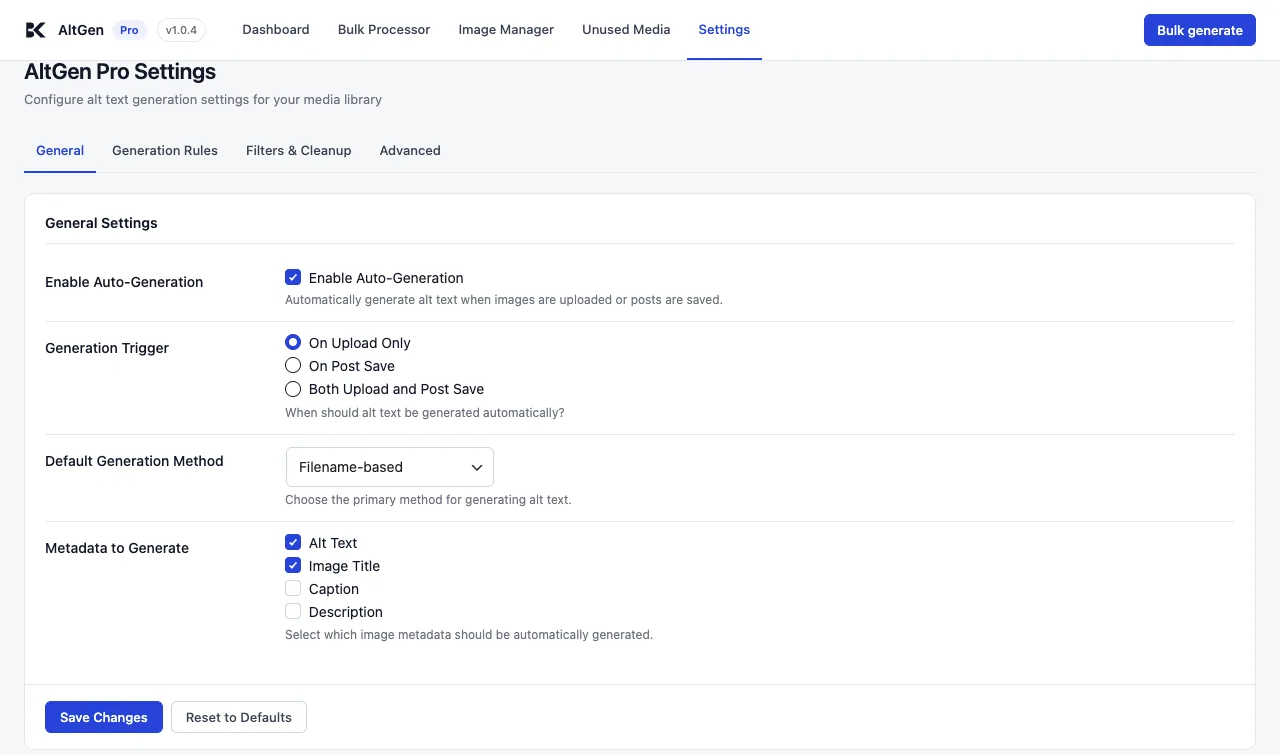
In ByteKeel PixTag Pro open ByteKeel PixTag › Settings › General:
- Enable Auto-Generation switches the feature on (on by default).
- Generation Trigger: On Upload Only (default), On Post Save, or Both Upload and Post Save.
- Default Generation Method: Filename-based (default), AI-powered, Context-aware or Hybrid (AI first, then the template, then the file name).
- Metadata to Generate: Alt Text and Image Title are ticked by default; Caption and Description are optional.
For AI descriptions, ByteKeel PixTag Pro uses ByteKeel AI by default, and each image uses one of the credits included in your plan each month. To use your own provider instead, see Connect OpenAI or Claude. With your own key, each automatically processed image is one request billed to your own API account. If the AI request fails, ByteKeel PixTag Pro falls back to the file name rather than leaving the field empty. Which method suits your images is compared in Filename-based alt text vs AI vision.
What “On Post Save” really covers
When a post is saved, ByteKeel PixTag Pro processes the images attached to that post, which in WordPress means images first uploaded while editing it. An image picked from the library that was uploaded elsewhere is not attached, so a post save does not reach it. For most sites On Upload Only is the simpler choice.
What automatic generation does not do
Old images
It only runs for new uploads. Fill the rest of the library with a bulk run: ByteKeel PixTag Bulk Processor or ByteKeel PixTag Pro bulk generation.
Bulk run needed
Images already in posts
The block editor copies alt text into the post when you insert an image. Changing the Media Library later does not update that copy; see why Media Library alt text does not update your posts.
Not changed
Decorative images
A file name or an AI model cannot tell that an image is decorative. Clear those by hand: decorative images and empty alt text.
Review by hand
Camera file names
With file names only, IMG_4032.jpg produced nothing in our test and DSC00125.JPG became “Dsc”. Rename files before upload, use a template, or use AI.
Rename or use AI
Check that it worked
- In Media › Library (list view) the Alt Text column shows a green tick for images with alt text and a red cross for images without.
- The ByteKeel PixTag Dashboard shows the share of images with alt text and the latest generations, with the method that was used.
- Open one new image and read the result. A useful alt text says what the image shows in a short phrase; edit it if it does not.
Where ByteKeel PixTag fits
Alt text on every upload with ByteKeel PixTag Pro
ByteKeel PixTag fills alt text from file names and templates on your own server, when you start it. ByteKeel PixTag Pro adds automatic alt text on upload and post save, no limits for local generation, AI descriptions with ByteKeel AI or your own OpenAI or Claude key, bulk filters and an image manager.
- Automatic on upload, existing alt text left alone
- No API key needed for file-name and template methods
- ByteKeel PixTag Pro: ByteKeel AI or your own OpenAI / Claude key, with a file-name fallback
Frequently asked questions
Does WordPress generate alt text automatically?
No. WordPress stores whatever you type in the Alternative Text field and leaves it empty otherwise. Automatic alt text needs a plugin such as ByteKeel PixTag Pro.
Can I generate alt text automatically without an API key?
Yes, with ByteKeel PixTag Pro’s file-name and template methods, which run on your own server without any AI service. The free ByteKeel PixTag uses the same methods but only when you start it (Media Library or bulk processor). Either way it is only as good as your file names, so name files descriptively.
Will automatic alt text overwrite alt text I wrote?
Not with the default settings. Images that already have alt text are skipped on upload and on post save.
Does it fill in images I uploaded before installing the plugin?
No. Automatic generation only covers new uploads. Use the bulk tools once to fill in the existing library.
Did this answer the question? No — open a support request