Totals, CSV export, recalculate
ByteKeel Order Profit totals on the Dashboard and Reports, CSV export of any date range, and how to calculate profit for existing orders.
ByteKeel Order Profit shows totals on its Dashboard and in Reports, exports the orders of any date range as a CSV file, and can recalculate every order with your current costs. All three are under WooCommerce › Order Profit.
Dashboard
The dashboard shows revenue, cost and profit of counted orders for today, the last 7 days and the last 30 days, the top products by profit over 30 days and the most recent orders. Product profit there is line revenue minus product cost, before payment fees and packaging.
Reports and totals for any period
- Open the Reports tab.
- Pick a Period, or set From and To dates, and select Apply.
- Read the totals: orders, revenue, product costs, fees and packaging, profit and margin, followed by a day-by-day view, products by profit and the list of orders.
Only orders in the statuses ticked under Settings › Counted order statuses are included. If your shop takes orders in more than one currency, the amounts are added together without conversion and the report says so.
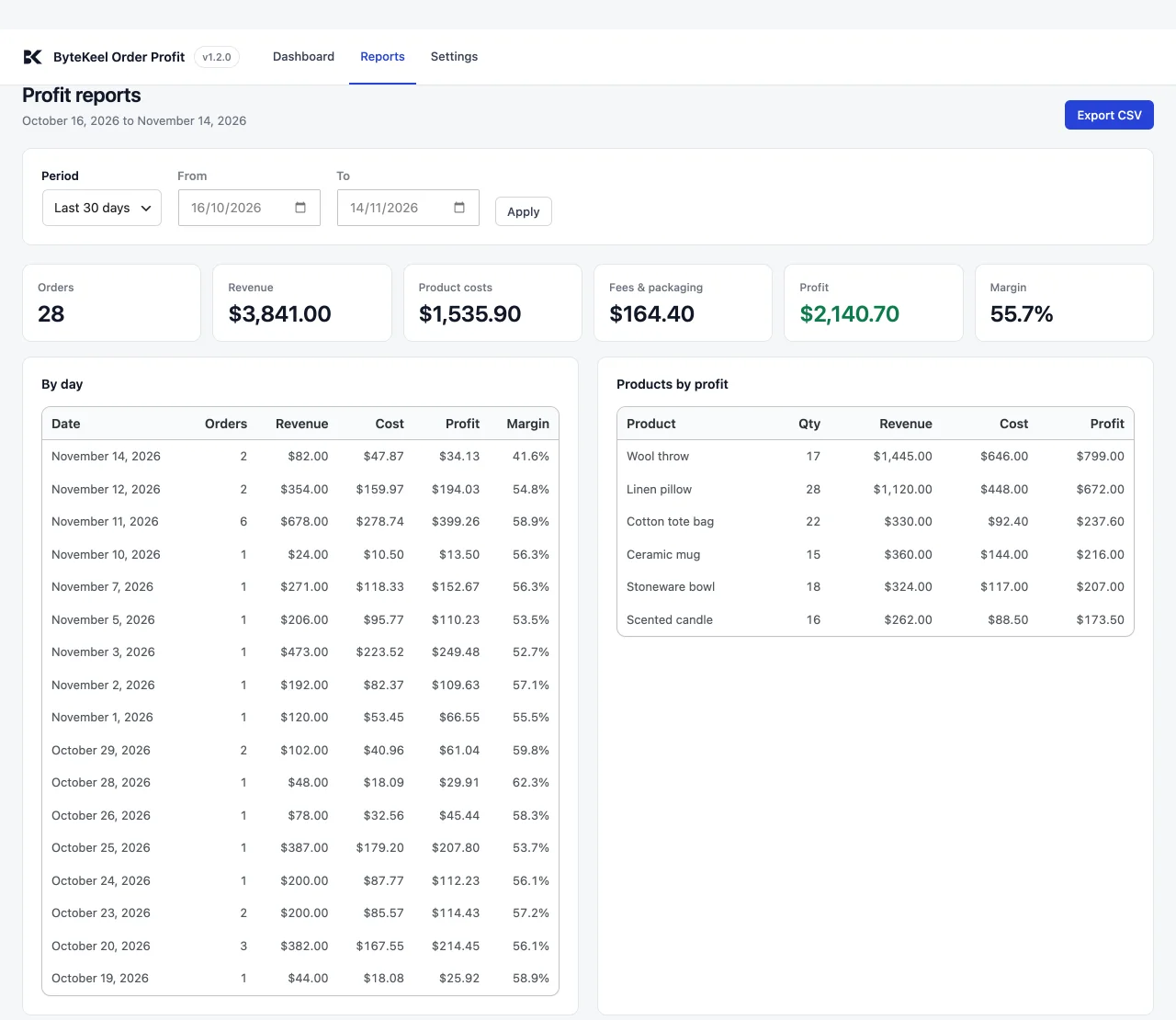
Export to CSV
Select Export CSV on the Reports tab. The file contains the orders of the selected range, one row per order, with these columns: Order, Date, Status, Currency, Revenue, Product costs, Payment fee, Packaging, Total cost, Profit, Margin % and Items without cost. Excel, Numbers and Google Sheets open it directly.
Calculate existing orders
Orders placed before you installed the plugin, or before you entered your costs, have no saved profit yet. On the dashboard select Recalculate all orders: it saves a profit on every order in a counted status using the current product costs, and removes it from orders that no longer count. It only updates the saved profit figures and does not change order statuses, so no customer emails are triggered.
Each order normally keeps the unit costs it was first calculated with, so changing a product’s cost later does not rewrite old orders. Recalculating replaces those saved unit costs with today’s. On a single order, the profit box has a Recalculate with current costs action for the same thing.
Settings changes, such as excluding tax or adding a payment fee, apply to orders calculated from then on; recalculate to apply them to older orders. See calculation settings for each option and whether order profit should include tax and shipping.
Did this answer the question? No — open a support request