
In short:
- Click-to-open popup: Divi 5 builds it with Interactions on a hidden section, no plugin needed.
- Popup that opens by itself: Divi 5 has no exit intent, scroll percentage or page targeting, so you need a popup manager.
- Not on every visit: natively you get one rule, a cookie that hides the popup for a year after a close.
- Full campaign without code: design in the Divi Builder, then set type, trigger, pages and frequency in seven steps.
Can you create a popup in Divi 5 without code?
Yes. Divi 5 can create a popup without code by showing a hidden section with Interactions, on a click, after a delay, or when a module scrolls into view. What it does not include is a popup manager.
Nothing decides on which pages it opens, for whom, on which devices, or how often it returns. There is also no exit intent, no dimmed backdrop and no Escape-key closing.
The faster way to run a Divi 5 popup
We built Divi Smart Popup at ByteKeel to add those rules while the design stays in the Divi Builder. Its Check campaign button opens the page in a test mode only you see and names the rule that is stopping the popup.
You can try it on a private WordPress in the ByteKeel playground. If you only need a click-to-open popup, here is how to build it natively first.
How to build a native Divi 5 popup with Interactions
A native Divi 5 popup is a hidden, fixed section that a button shows and a close button hides. In our test on Divi 5.2, these steps worked on desktop and on a phone-sized touch screen:
- Build the popup section: label a section Popup and set Advanced › Position to Position Fixed with a high Z Index.
- Hide it by default: in Advanced › Visibility › Disable On, switch on Desktop, Tablet and Phone.
- Open it from a button: in Advanced › Interactions › Add Interaction, set Click, Show Element, Section (Popup).
- Add a close button: give a button inside it Click, Hide Element, Section (Popup).
- Open it automatically (optional): use a Load interaction with a Time Delay, or Viewport Enter on a module part way down.
- Hide it after a close (optional): Add Cookie on the close button plus a Cookie Does Not Exist condition on the section hides it for 365 days.
Screenshots for each step are in How to create a Divi 5 popup without a plugin.
How to build a Divi 5 popup campaign in seven steps
You need the Divi 5 theme, Divi Smart Popup installed and activated, and about fifteen minutes. The screens come from a fresh install, taken in November 2026.
Step 1: Start from a template
Open Popups › Add New, name the popup (only you see it) and pick one of 37 templates, grouped as Promo, Email subscription, Video, Top and bottom bars, Login, Engagement and Notices, or a blank canvas.

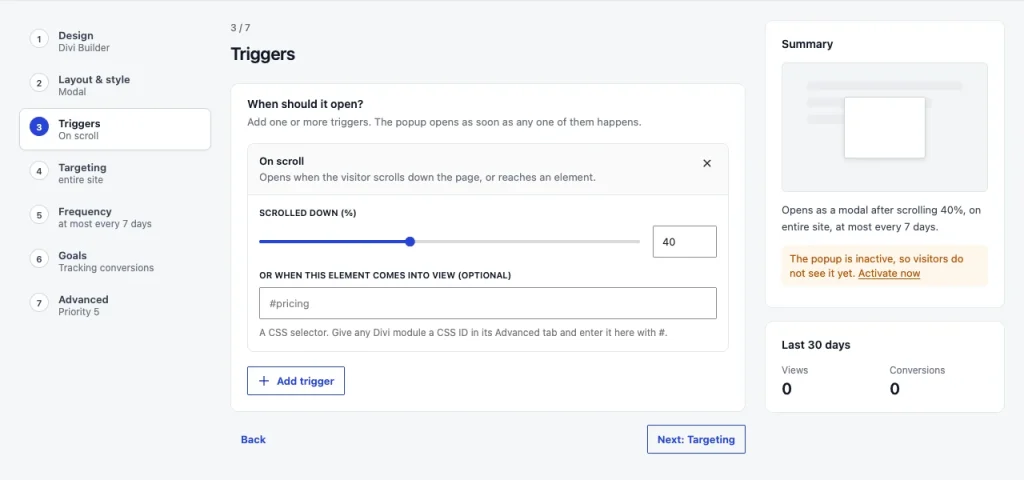
A template also sets a trigger and a frequency. The Newsletter sign-up we picked opens as a modal after a 40% scroll, at most once every 7 days.
Step 2: Design it in the Divi Builder
On Design, select Open Divi Builder. It opens in a new tab on a canvas sized like the live popup, with your modules, presets and global colours. Save, then return to the editor tab.
A button linked to #d5pe-close closes the popup. Any link set to #d5pe-open- plus the popup's number (the editor shows it) opens it, including menu items.
Step 3: Choose the popup type
On Layout & style, pick modal, slide-in, top bar, bottom bar, full screen, left drawer or right drawer. Start with a modal. Width per device, overlay, animation, Escape key and scroll lock live here too.
Step 4: Decide when it opens
The Triggers step answers "when". A popup opens as soon as any one of its triggers happens.
| Trigger | Opens when | Good for |
|---|---|---|
| Page load | A set number of seconds after the page loads | Announcements, notices |
| On scroll | The visitor scrolls a percentage, or an element comes into view | Offers after some reading |
| Exit intent | The pointer leaves through the top of the window; on phones, a quick scroll back up | Last-chance offers |
| Click | A matching element is clicked | Forms and details on demand |
| Inactivity | No mouse, key, scroll or touch for a set time | Reminders |
| Page views | The visitor has viewed a number of pages in this visit | Engaged visitors only |
| URL parameter | The address contains a parameter, such as ?offer=spring |
Campaign and email links |
Step 5: Choose the pages and visitors
Targeting answers "where" and "for whom". A new popup shows on the entire site, so test on one page first.
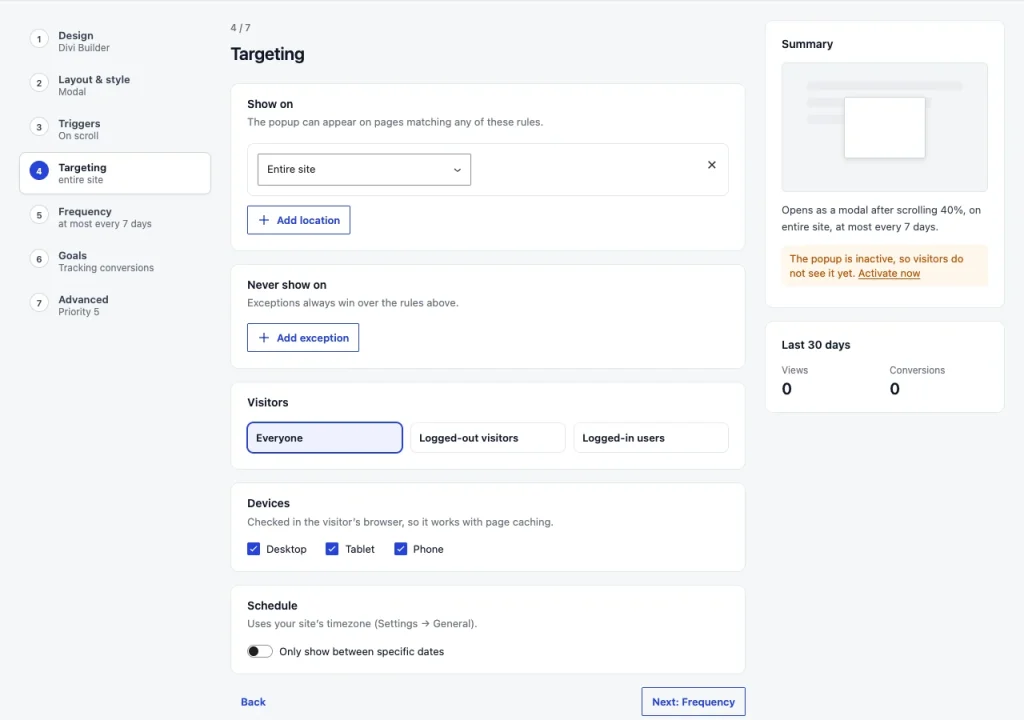
- Show on and Never show on: pages, posts, post types, archives, categories and tags, authors, search results and the 404 page. Exceptions always win.
- Visitors: everyone, logged-out visitors only, or logged-in users, optionally by role.
- Devices: desktop, tablet and phone, checked in the browser by screen width, so it keeps working behind a page cache.
- Schedule: show the popup only between two dates, in your site's timezone.
Step 6: Decide how often
Frequency offers every time, once per visit, every few days or only once, plus a total cap, stop after a conversion, and hide for some days after a close.

We tested these caps across five tabs in How to stop a Divi popup showing too often.
Step 7: Set goals, then switch it on
On Goals, a conversion is a form submitted in the popup (Divi Contact Form, Email Optin and most form plugins) or a click on elements you name. After it, the popup can close, go to a page, or show a thank-you message.
Advanced holds the priority (only one modal opens at a time; the higher priority wins). New popups stay inactive, so when the summary on the right reads as intended, switch the top toggle to Active and save.
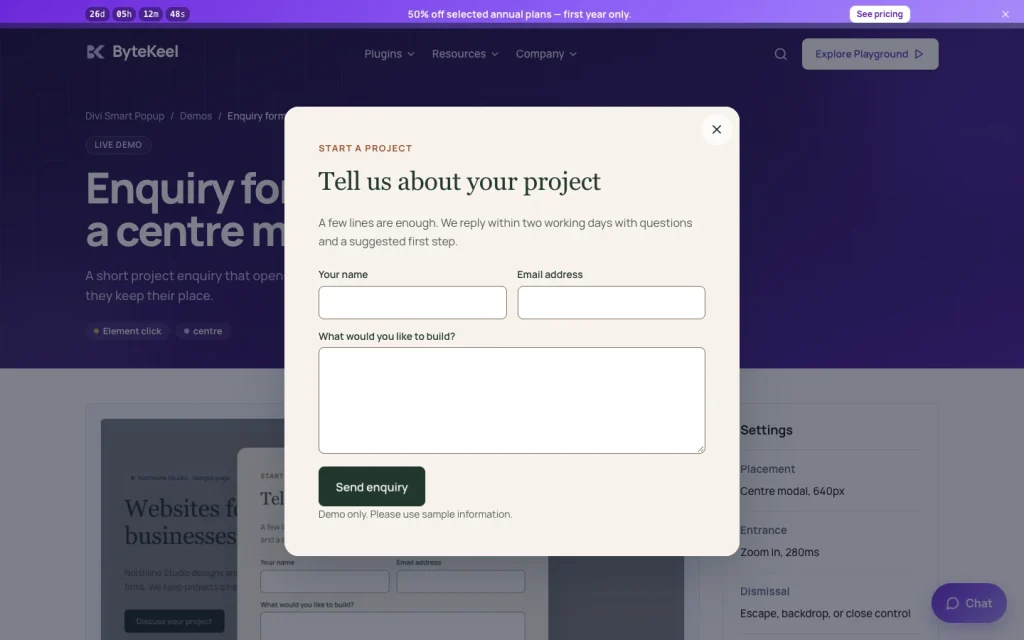
Why is my new Divi popup not showing?
Usually a rule is doing its job. Check, in order:
- Is it Active: inactive popups are never shown to visitors.
- Run Check campaign: it opens the page in test mode, visible only to you for up to four hours, and names the blocking rule.
- Use a private window: if you have already seen it, the frequency cap is working.
- Check devices and pages: review the device boxes and the Show on and Never show on rules.
- Clear the page cache: pages, visitors and the schedule are decided when the page is built. See Divi popups and page caching.
Native Divi 5 vs Divi Smart Popup: which do you need?
Native Divi 5 covers click-to-open popups; Divi Smart Popup adds rules for popups that open by themselves.
| Criterion | Native Divi 5 Interactions | Divi Smart Popup |
|---|---|---|
| Opening | Click, Load delay, Viewport Enter; no exit intent | Seven triggers, including exit intent on phones |
| Pages and visitors | Per page, or site-wide in a Theme Builder template | Show on and Never show on, visitors, roles, devices, dates |
| How often | A 365-day cookie after a close | Four modes, a total cap, stop after a conversion |
| Closing | Your own close button only | Click outside, Escape key or close button |
| Finding why it is hidden | Private windows and trial and error | Check campaign in a private test mode |
| Cost | Free with Divi 5 | $29 a year for one site |
When you do not need Divi Smart Popup: your popup only opens on click, such as a size guide or booking form. Native Divi 5 handles that well.
Divi Smart Popup needs Divi 5, not Divi 4. It has no email service of its own, so collect emails with Divi's Email Optin module or your form plugin.
How to keep a Divi popup from annoying visitors
Four habits keep a popup useful:
- Test in a private window: your normal browser remembers you saw the popup.
- Start on one page: widen targeting only once the popup works there.
- Set a frequency cap: avoid Every time for any popup that opens by itself.
- Switch off old popups: set finished campaigns to inactive or give them an end date.
To compare plans and features, see Divi Smart Popup.
Frequently asked questions
Can Divi 5 open a popup on exit intent?
Not natively. Divi 5.2 has no exit-intent trigger, and its Mouse Exit interaction watches one module, not the browser window. Exit intent needs a plugin or your own script.
Do I need to write code to use Divi Smart Popup?
No. You design the popup with Divi modules and set every rule in the editor's steps. The only text you type is an optional link value such as #d5pe-close.
Where is popup frequency stored?
In the visitor's own browser, with no cookie sent to your server. A visitor who switches browser or device, or clears site data, starts again.
More about Divi Smart Popup
-

Best Divi 5 popup plugin? Compared by use case
Divi 5's Interactions handle click-to-open popups for free. Once a popup should open by itself, on chosen pages and not on every visit, a plugin earns its place. Here is how the…
-

Does exit intent work on mobile? We tested it
Classic exit intent needs a mouse pointer. See how a touch version reacts to a fast upward swipe, what our Divi 5 test measured and when another trigger is safer.
Leave a Reply