Create a Divi email signup or contact form popup
Put a Divi Email Optin or Contact Form in a popup with Divi Smart Popup: build the form, test the submission end to end, and stop showing it after sign-up.
Short answer
Divi 5 handles the form part well on its own. Controlling how often the popup returns is where it runs out.
- Put a Divi Email Optin or Contact Form module in a popup section — no plugin
- Open it on click, after a delay or on scroll with Interactions
- Hide it after a close with a cookie — but only for a fixed year
- No “once per visit”, no “every 7 days”, no “stop after they subscribe”
- Divi Smart Popup adds those rules and counts sign-ups, while Divi’s own form still sends the data
Tested on 4 November 2026 with Divi 5.2.0, WordPress 7.1.4 and Divi Smart Popup, in Chromium at desktop width (1280 px) and with a phone-sized touch screen (390 px). Elegant Themes’ current release at the time was Divi 5.18.2, which we have not tested: menu labels may have moved since 5.2. The Divi Smart Popup settings used here were checked against the 2.1.4 source code on 5 November 2026; releases since our test changed licensing, page-cache clearing and accessibility, not these steps.
We tested a Divi Contact Form in a popup end to end. We didn’t connect an Email Optin module to a mailing service, because that needs an account with the provider; those steps come from Elegant Themes’ documentation.
How a sign-up popup fits together
Step 1: Choose the form
Email Optin module
For newsletter sign-ups. Sends the address to your email service through Divi’s own connection — Elegant Themes lists 21 providers in The Email Optin module in Divi 5.
Built into Divi
Contact Form module
For enquiries or “send me the checklist”. Divi emails each submission to you. See The Contact Form module in Divi 5.
Built into Divi
A form plugin
Its block or shortcode works inside the popup like any other content.
Keep it short: an email field, and a name only if you’ll use it. Every extra field costs sign-ups.
Step 2: Put the form in a popup
Without a plugin: add the form module to a hidden, fixed-position section and open it with Interactions — see Create a Divi 5 popup without a plugin.
With Divi Smart Popup: start from an email sign-up template, open the Divi Builder and add the form module as you would on any page. Divi Smart Popup stores no submissions and has no email integration of its own — the form keeps doing its job. See Embed a form in a popup.


Step 3: Control how often it appears
Decide what “not too often” means first. For a sign-up form the usual answer is: not again this visit, not for a while after a close, and never once the person has signed up.
No pluginDivi 5 on its ownAdd Cookie + Cookie condition
- Hide after a close — for 365 days, fixed
- Once per visit
- Every few days
- Stop after they subscribe — a sign-up isn’t a click on your close button
- Checked on the server, so a page cache can ignore it
PluginDivi Smart PopupFrequency step
- Every time, once per visit, every few days, only once
- Maximum times in total
- Stop when the visitor converts — a successful Divi form submission counts
- Hide for N days after a close
- Runs in the browser, so it works on cached pages; no cookie
Native: one cookie
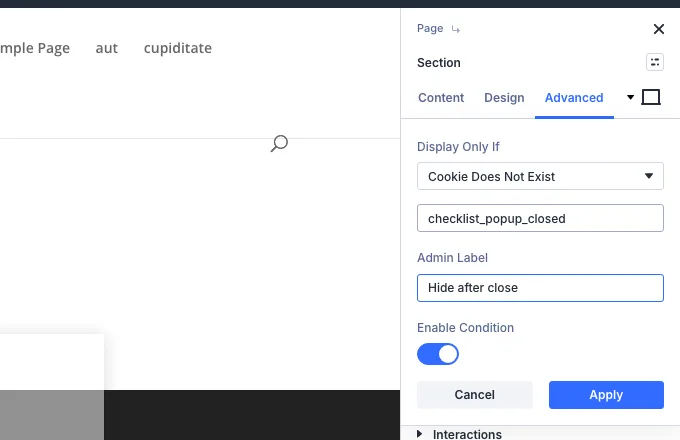
Add Click → Add Cookie to the close button and a Cookie Does Not Exist condition to the section. Divi’s condition list also has Page Visit and Number Of Views; we didn’t test those for popups.
With Divi Smart Popup: Frequency and Goals
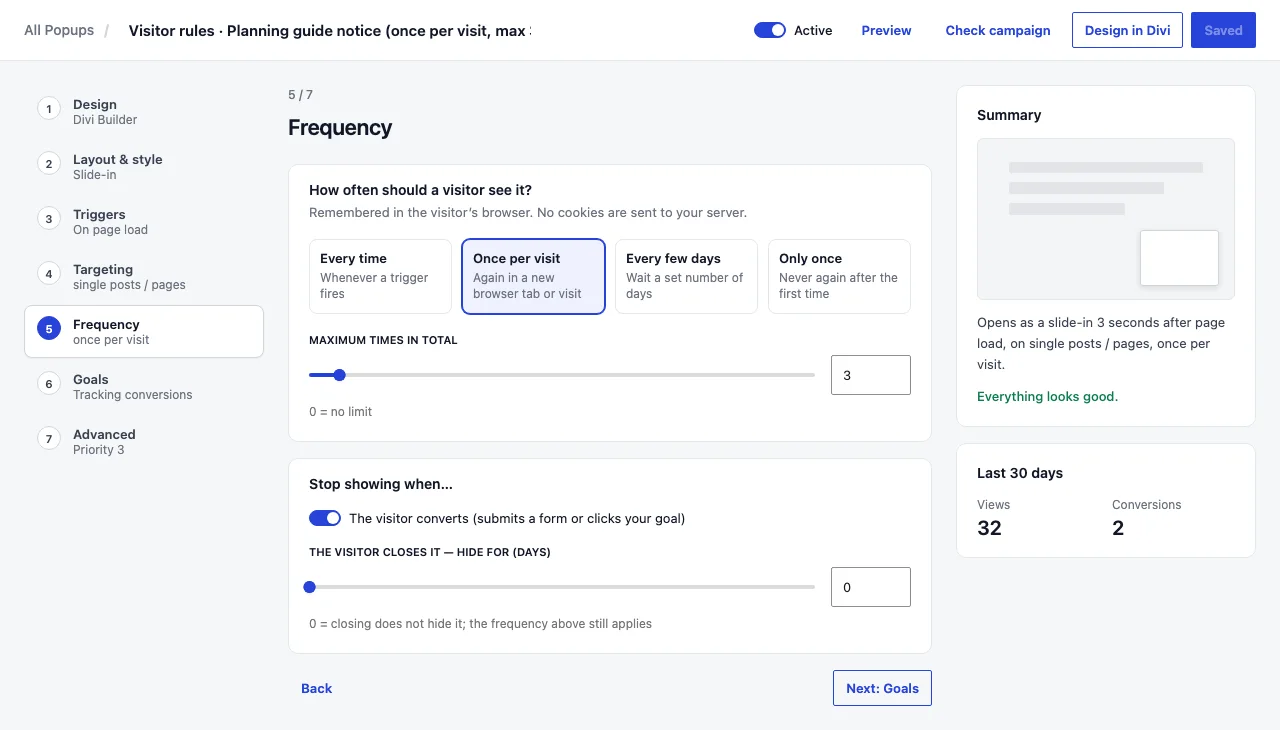
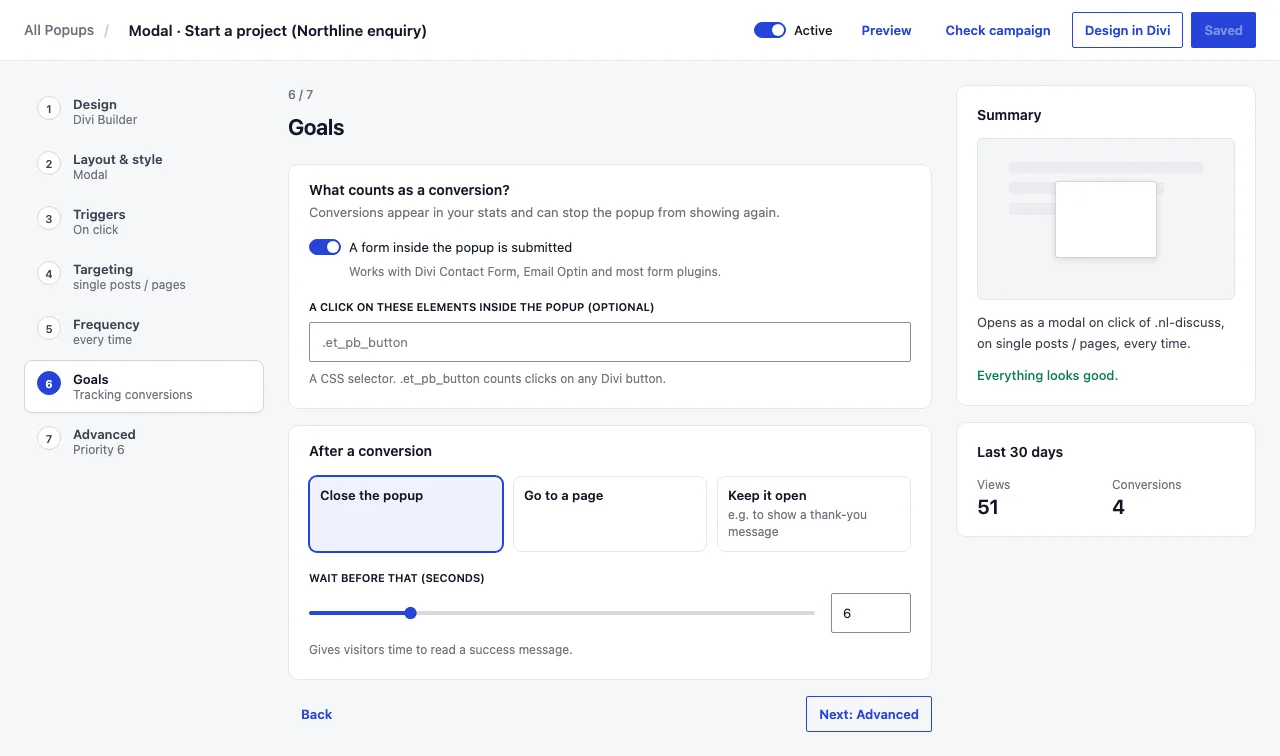
History is kept in the visitor’s browser storage — no cookie, nothing sent to your server. Details: Frequency caps and Show a Divi popup only once per visitor.
Where Divi Smart Popup fits
Ask once, stop when they’ve said yes
A native popup can’t tell a sign-up from a close, so subscribers keep seeing the form. Divi Smart Popup counts a successful Divi form submission as a conversion and stops there — and shows you how many people signed up.
- Stop after a sign-up, once per visit, every few days
- Works with Divi Email Optin, Contact Form and most form plugins
- Anonymous daily stats: views, closes, conversions per device
- Stores no email addresses itself
Mistakes worth avoiding
Opening on arrival, on phones
A sign-up box over an article before anyone has read a line is what Google warns about in Avoid intrusive interstitials. Wait for scroll or a delay, or use a bar.
No way to say no
Give it a visible close button and a plain “No thanks” link.
Testing in your own browser
After one test, frequency rules hide it from you. Use a private window or Check campaign.
Forgetting consent
What to say about storing emails, and whether you need double opt-in, depends on where you and your visitors are. That lives in your email service and privacy policy.
For the full list of what Divi 5 does natively and what the plugin adds, see native Divi 5 popups vs Divi Smart Popup.
Frequently asked questions
Can I add a Divi Email Optin module to a popup?
Yes. It is an ordinary Divi module, so it works inside a native popup section or a Divi Smart Popup design, with the same provider connection as anywhere else on your site.
How do I stop an email popup showing after someone subscribes?
Natively, Divi 5 can’t react to a successful sign-up; it can only remember a click on a button you choose. In Divi Smart Popup, leave “The visitor converts” on in the Frequency step: a successful submission counts as a conversion.
How do I show a Divi popup once per visit?
Divi 5 has no native once-per-visit rule; its cookie lasts a year. In Divi Smart Popup, set Frequency to Once per visit.
Does Divi Smart Popup store the email addresses?
No. The form module sends them where it always does — to your email service or your inbox. Divi Smart Popup only counts that a conversion happened, as anonymous daily totals.
Did this answer the question? No — open a support request